
Android Auto provides a smarter, hands-free way to integrate your smartphone with your car. Before using this feature, it’s important to know whether your smartphone is compatible with Android Auto. This article will guide you through the compatibility process, including system requirements, the importance of your Android version, and wireless capabilities. You’ll also learn how to check your smartphone’s compatibility and troubleshoot any issues, ensuring a smooth connection between your device and the car’s infotainment system.
Understanding Android Auto Compatibility
Minimum System Requirements
The minimum system requirements for Android Auto include an Android smartphone running version 5.0 (Lollipop) or later. You’ll also need a stable USB connection if you’re using a wired connection, or Wi-Fi if you’re using wireless Android Auto. Furthermore, your car’s infotainment system must be compatible with Android Auto. Checking these requirements ensures that your device can function properly with the service, providing smooth performance while on the road.
Importance of Android Version
The version of Android on your smartphone is crucial for Android Auto compatibility. Newer versions, such as Android 10 or higher, offer enhanced features and better performance. If you’re using an older version of Android, you may need to update your device’s software before it can work with Android Auto. Keeping your device updated ensures compatibility with the latest Android Auto features and reduces the chances of connectivity issues.
Role of USB Cable Quality
When using a wired connection, the quality of your USB cable can significantly affect the performance of Android Auto. A high-quality, certified cable ensures a stable connection between your smartphone and your car’s infotainment system. Using a damaged or low-quality cable can result in frequent disconnections, slow data transfer, or even a complete failure to connect. Always use the USB cable that came with your phone or opt for a certified replacement to avoid issues.
Checking Smartphone Compatibility
Official Compatibility Lists
One of the easiest ways to check if your smartphone is compatible with Android Auto is by referring to the official compatibility lists provided by Google. These lists detail the specific smartphone models that support Android Auto, including both wired and wireless connections. If your device is listed, you can proceed with the setup. If it’s not listed, you may need to consider alternative options for using Android Auto or troubleshooting potential issues.
Using the Android Auto App
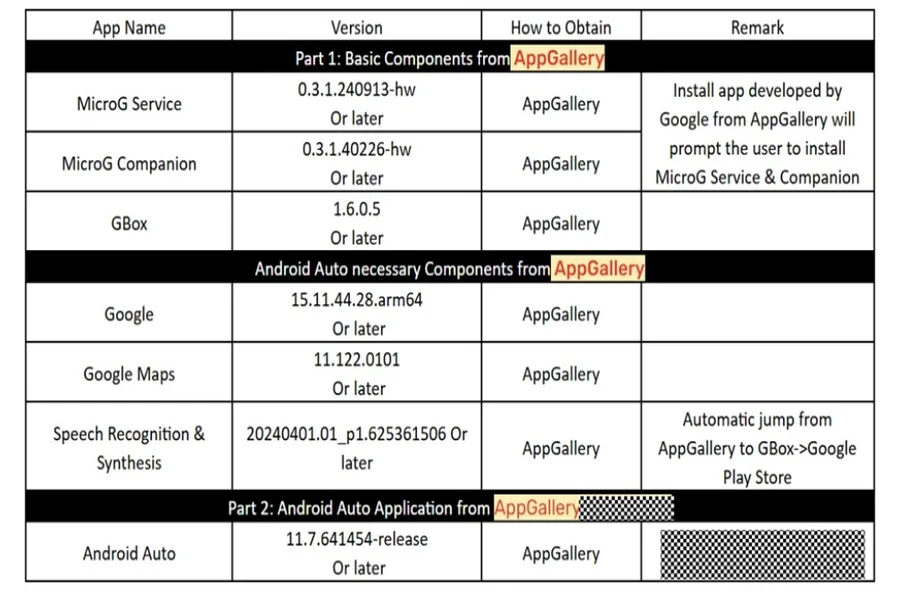
The Android Auto app can help you determine whether your smartphone supports the service. Simply download and install the app from the Google Play Store. Once installed, open the app and follow the on-screen instructions to connect your phone to your car’s infotainment system. If your phone is not compatible, the app will notify you and provide guidance on possible solutions. For Huawei users, how to use Android Auto on huawei involves additional setup steps.
Troubleshooting Tips
If your smartphone is not connecting to Android Auto, there are a few troubleshooting steps you can follow. First, ensure that your phone’s operating system and the Android Auto app are both up to date. Next, check your phone’s USB cable and connection settings. For wireless Android Auto, verify that both your car’s system and phone support the wireless connection feature. If the issue persists, restarting both the phone and the car system may help establish a successful connection.
Wireless Android Auto Compatibility
Requirements for Wireless Connection
For wireless Android Auto, your smartphone must support Wi-Fi Direct and have Android 11 or later installed. Your car’s infotainment system must also support wireless Android Auto. Not all vehicles are equipped with this feature, so it’s important to verify if your car is compatible before attempting to use the wireless connection. The wireless feature also works best with a stable and strong Wi-Fi signal for uninterrupted connectivity.
Supported Smartphone Models
Not all smartphones are equipped to handle wireless Android Auto. The feature is supported on select models, primarily those running Android 11 or higher. Some brands have specific models that are compatible with wireless Android Auto. If you have a Huawei device, you may need to check if it’s on the list of supported models for this feature.
Setting Up Wireless Android Auto
Setting up wireless Android Auto is simple once your smartphone and car meet the necessary requirements. Ensure that your phone’s Wi-Fi is enabled and connected to the same network as your car’s infotainment system. In the Android Auto app, select the wireless connection option and follow the on-screen instructions. Once connected, you can enjoy hands-free control and access to your smartphone’s apps without the hassle of using a USB cable.
Alternatives for Incompatible Smartphones: Using a USB Connection
If your smartphone isn’t compatible with wireless Android Auto, using a USB connection is a reliable alternative. Even if wireless features are unavailable or not supported, you can still enjoy the full benefits of Android Auto by connecting your phone via a USB cable. This ensures you can access navigation, communication, and entertainment apps while driving, offering a safer, hands-free experience without the need for a wireless connection. The USB connection provides a stable and efficient way to use Android Auto.
Conclusion
Ensuring that your smartphone is compatible with Android Auto is essential for a smooth and safe driving experience. By checking the system requirements, verifying compatibility through official lists or the Android Auto app, and ensuring your phone’s software is up-to-date, you can easily integrate Android Auto with your vehicle. If your phone isn’t compatible with wireless Android Auto, using a wired connection is a simple and effective alternative. With Android Auto, driving becomes safer and more convenient by keeping you connected while reducing distractions, as noted by Infomagazine.